
Appearance
Camera, microphone, and location access
This page is for one situation: a permission prompt appeared, somebody tapped Don't Allow, and now the camera will not open, audio will not record, or GPS stamps are missing. Once a prompt is declined, the iPhone remembers the answer and the app is not allowed to ask again. The only way back is the iPhone's own Settings app, and there are two ways to get there.
If you are looking for what each permission means and when the app asks for it, that is on Install the app.
The fast way: from inside the app
The app can take you straight to the right Settings page. You never have to find it yourself.
- Open Settings (the gear on the Assignments screen) and find the Camera, microphone, and GPS card. Each one reads On, Off, or Not asked yet, checked live from the phone.
- Tap Open Settings. The ContentsCapture page of your iPhone Settings opens at once.
- Turn the switches on, then come back. The card flips to On on its own.
The same button appears right where the problem hits you: the camera screen shows Open Settings when camera access is off, and the app offers it the moment a recording fails because the microphone is off.
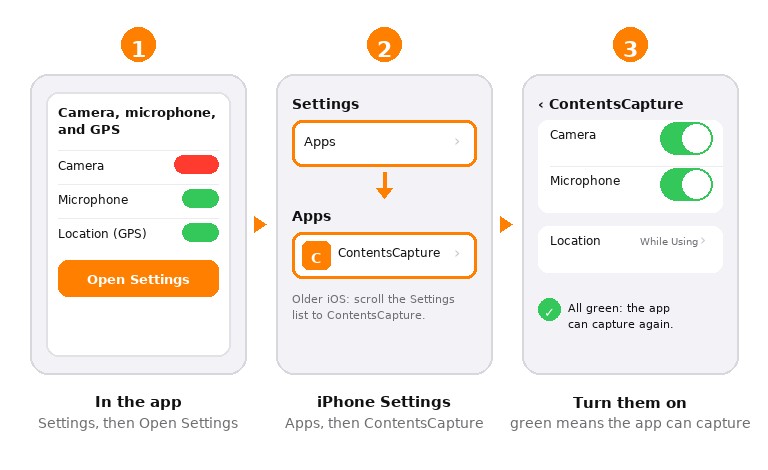
Reading the status card
Not asked yet is normal, not a problem. The app asks only at the moment a feature is needed, so a permission you have never triggered simply has not come up. Location (GPS) often reads this way: the app only asks for location when your team turns on GPS tagging.
The manual way: iPhone Settings
If you are helping a teammate over the phone, or the app is not at hand, this is the path to walk:
- Open the Settings app on the iPhone (the gray gear icon).
- Tap Apps, then tap ContentsCapture. On an older version of iOS there is no Apps list: scroll the main Settings page down to ContentsCapture instead.
- Turn Camera on and Microphone on. Green means on, gray means off.
- Tap Location and choose While Using the App. On the same screen, leave Precise Location on so GPS stamps land on the right building.
- Go back to ContentsCapture. Nothing needs saving; the change applies at once.
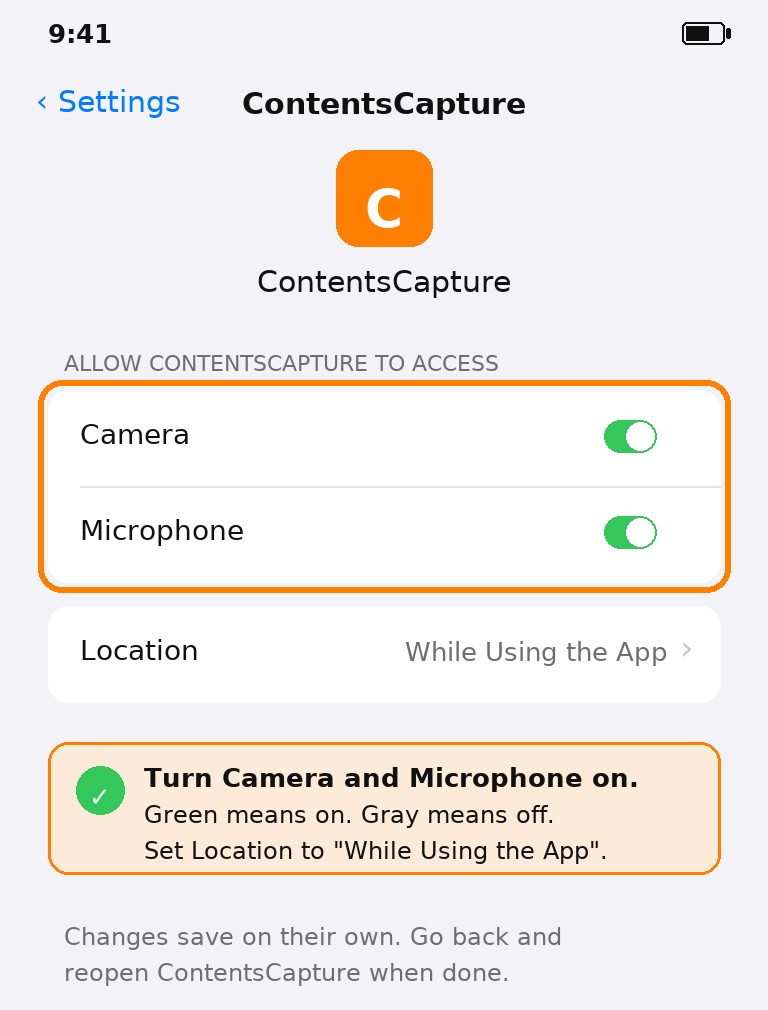
What each switch controls
| Switch | What stops working while it is off |
|---|---|
| Camera | The camera screen cannot open at all: no photos and no video |
| Microphone | Audio notes cannot record, and video records without sound |
| Location | Captures save normally, but GPS stamps are missing (only relevant when your team uses GPS tagging) |
Turning a switch off never deletes anything. Captures already on the phone stay on the phone, and everything syncs as usual. The switch only controls what happens the next time you capture.
Good to know
- The app never asks for your photo library or your contacts, so those switches will never appear on this screen.
- Access is per phone. If a teammate's phone is the one that declined, the fix has to happen on that phone.
- Admins: when a field user reports "the camera will not open", this page is the thing to send them.